Tapboards Summer Beta Testing
After a first look at ALA, we’re opening up a summer beta for Tapboards, a new way to capture common public service interactions in Gimlet without making staff slow down for every routine entry.
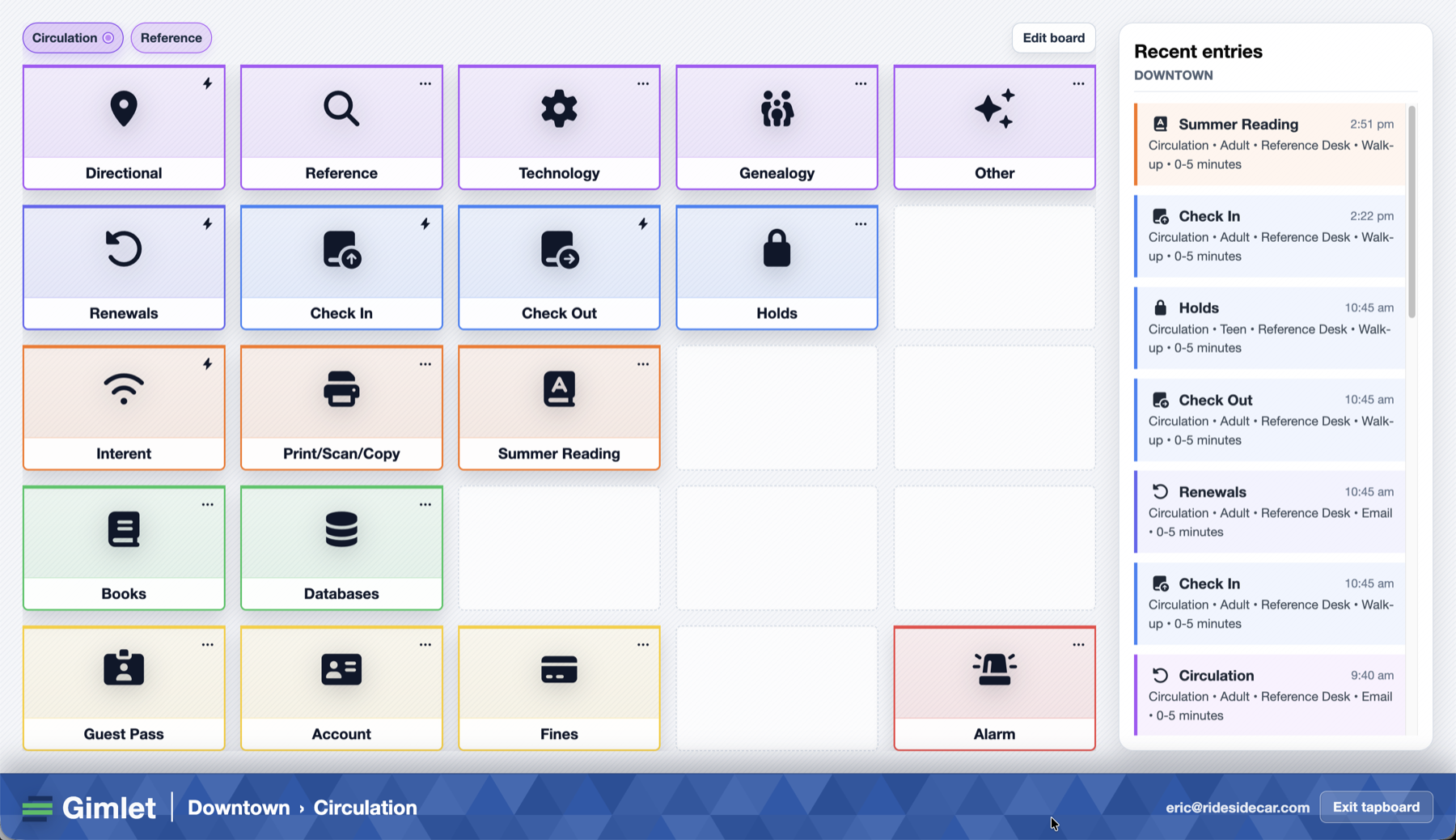
Tapboards turn repeated Gimlet entries into simple buttons for the desk, branch, department, or event you’re working. Instead of opening the full form, choosing the same category, adding the same tags, and saving, staff can tap a button built around the work they already do every day.
It’s still Gimlet data: structured, searchable, and ready for reports. The difference is how quickly those repeated interactions can be recorded.
Why Tapboards?
Service desks move fast. Reference questions, circulation help, technology troubleshooting, directional questions, program counts, outreach work, study room questions, account help, and all the quick little moments in between can arrive in a steady stream.
The challenge is not that these interactions are hard to understand. The challenge is that staff should not have to choose between helping the person in front of them and keeping useful statistics.
Tapboards are designed for that rhythm. Each board gives staff a compact 5x5 set of quick-entry buttons. A Reference Tapboard might emphasize research help, databases, readers advisory, and technology questions. A Circulation Tapboard might focus on holds, renewals, account questions, fines, materials, and check-ins. A temporary board could support an event, campaign, survey, conference week, or seasonal service.
Behind each button, Gimlet can preload the categories and tags that keep your data consistent. Staff get a faster workflow, and administrators get cleaner, more comparable reports across service points.
Configuring Buttons
Each Tapboard button starts with a simple setup screen. You choose a color, icon, and label so staff can recognize the interaction quickly, then set the entry defaults that should be saved when that button is used.
Those defaults can include the question type, duration, who asked, format, location, difficulty, and tags. A “Directional” button might always record a short walk-up circulation interaction at the reference desk. A “Renewals” button might default to circulation, 0-5 minutes, adult, and email or walk-up depending on how that desk usually works.
The goal is to move repeated decisions into setup. Staff should not have to re-select the same values every time if your library already knows how that interaction should count.
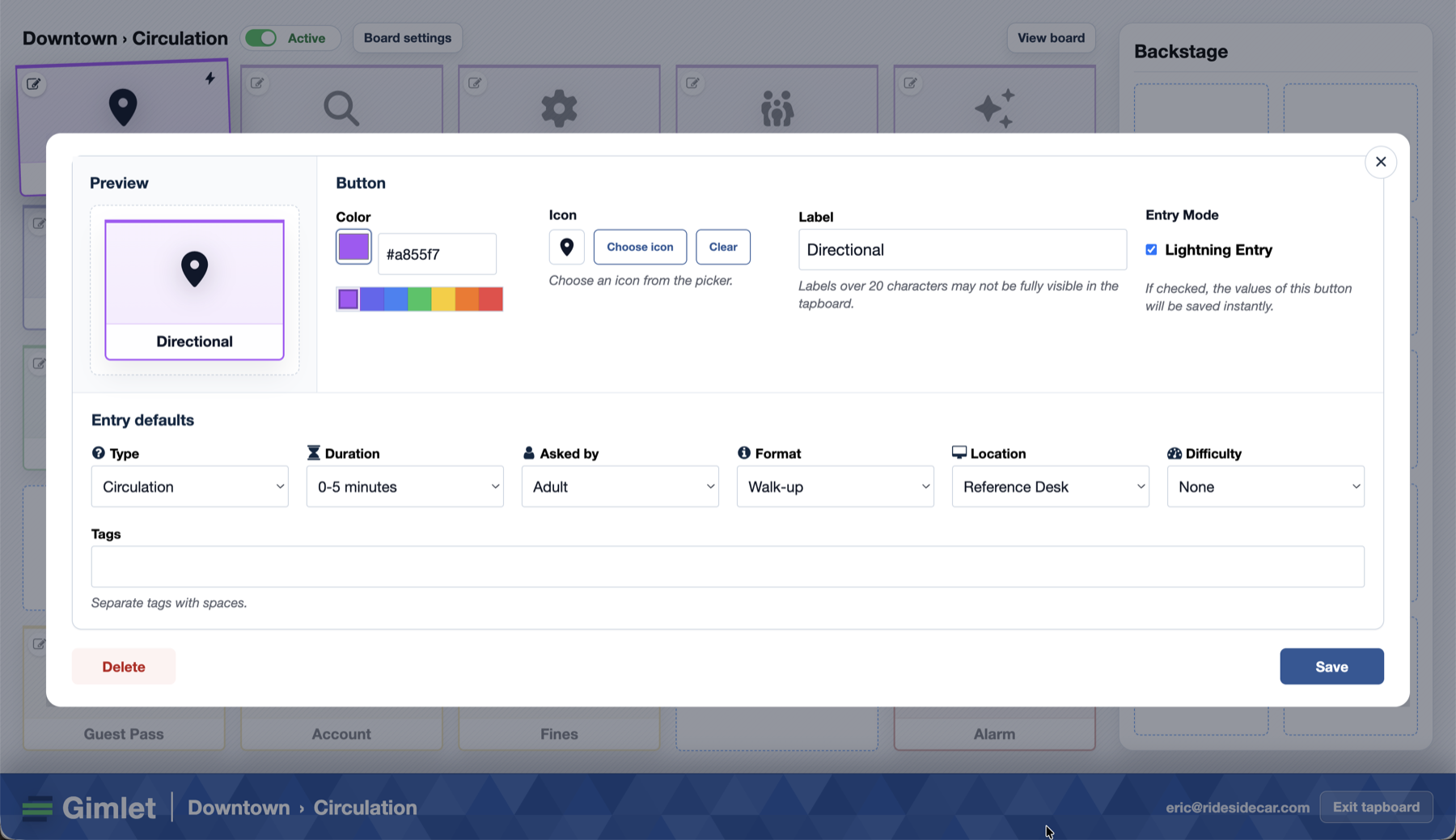 Button setup lets administrators decide what each tap should record before staff start using the board.
Lightning Entry and Refinement
Tapboards support two entry patterns, and each button can use the one that fits the work.
Lightning Entry is the fastest path. When it is turned on, tapping the button saves the entry immediately using the defaults behind that button. It is meant for high-volume, predictable interactions where speed matters more than stopping to review every field.
For interactions that need a little more judgment, Tapboards can open a refinement step before saving. The button still provides a starting point, but staff can adjust the details first: question type, duration, who asked, format, location, difficulty, and promoted tags. This is useful when a desk sees a familiar category of work, but the exact shape changes from patron to patron.
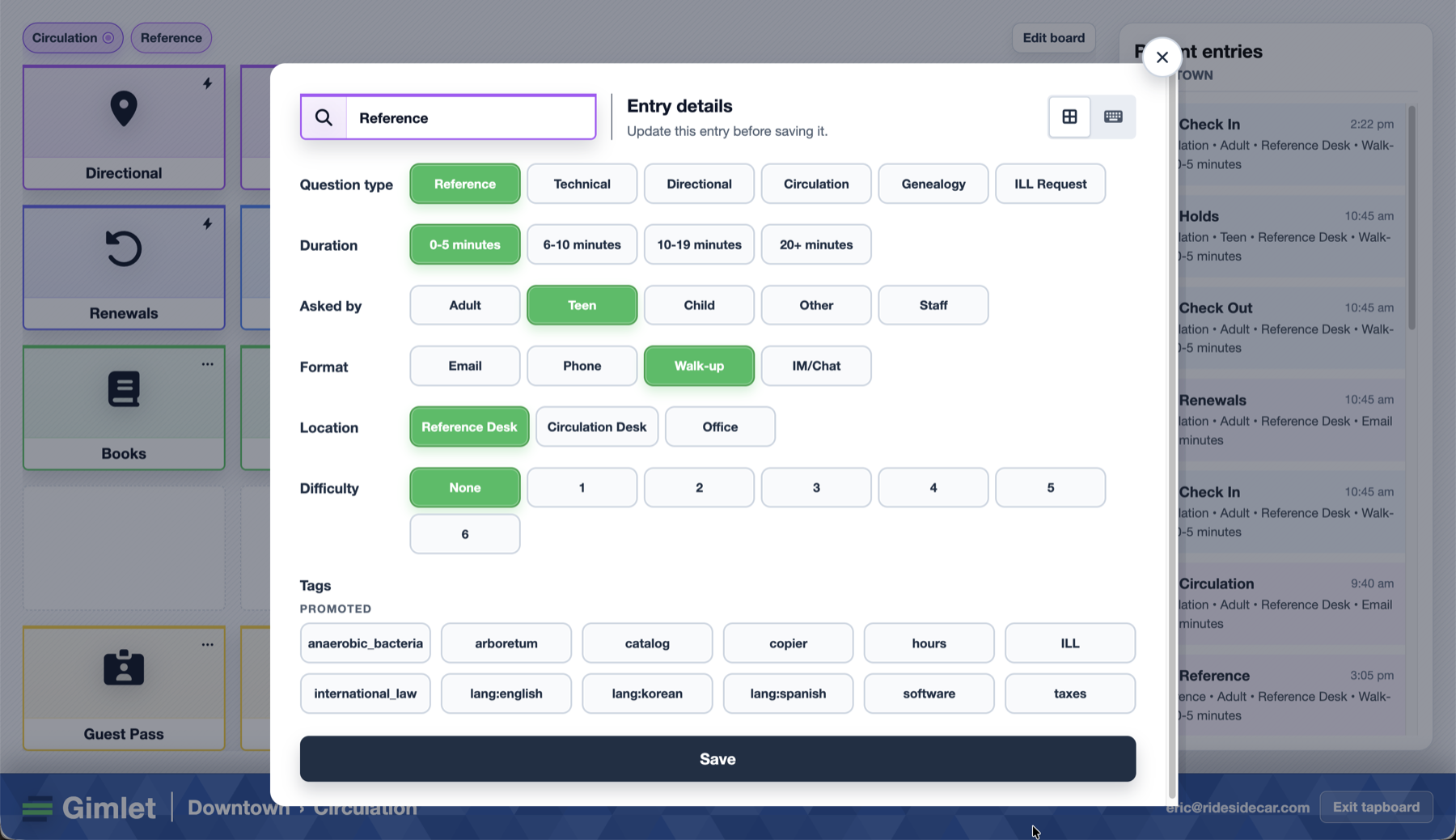 The refinement step keeps Tapboards fast while still giving staff room to correct or add detail before saving.
You can mix both modes on one board. A directional question might be pure lightning entry, while a reference or technology help button might open refinement so staff can adjust duration, format, tags, or difficulty before the entry goes into Gimlet.
What We’re Testing
This summer, we’re looking for real-world feedback from libraries willing to try Tapboards at an actual service point. We want to know how the feature behaves during busy shifts, how quickly staff understand it, and where the setup process needs to be clearer.
A few things we’re especially interested in:
- Which interactions deserve a one-tap button?
- Are 25 buttons enough, too many, or just right?
- Which labels and colors make sense to staff at a glance?
- Does the recent activity list help teams spot mistakes?
- What makes a Tapboard easy or difficult to configure?
- Where does the full Gimlet form still need to be close at hand?
This is exactly the kind of feature that needs real desks, real patterns, and real interruptions. We can test the mechanics ourselves, but we need working libraries to help us understand the feel.
Who Should Join?
The beta is a good fit for current Gimlet accounts that have one or more service points with lots of repeated interactions. Reference desks, circulation desks, computer labs, makerspaces, outreach teams, children’s services, genealogy rooms, and temporary program desks are all great candidates.
You do not need to overhaul your statistics workflow to participate. The best beta test might be as simple as building one Tapboard for one desk, letting staff use it for a few shifts, and telling us what felt smooth, what felt confusing, and what you wish it did next.
How To Get Involved
If you’d like to join the Tapboards summer beta, send us a note at support@gimlet.us or book a demo. We’ll help you talk through a good first board, turn on beta access, and check in as your staff try it out.
We built Tapboards because good public service data should fit the rhythm of public service work. The desk keeps moving. The data should keep up.
Cheers,
-Eric & Nate